

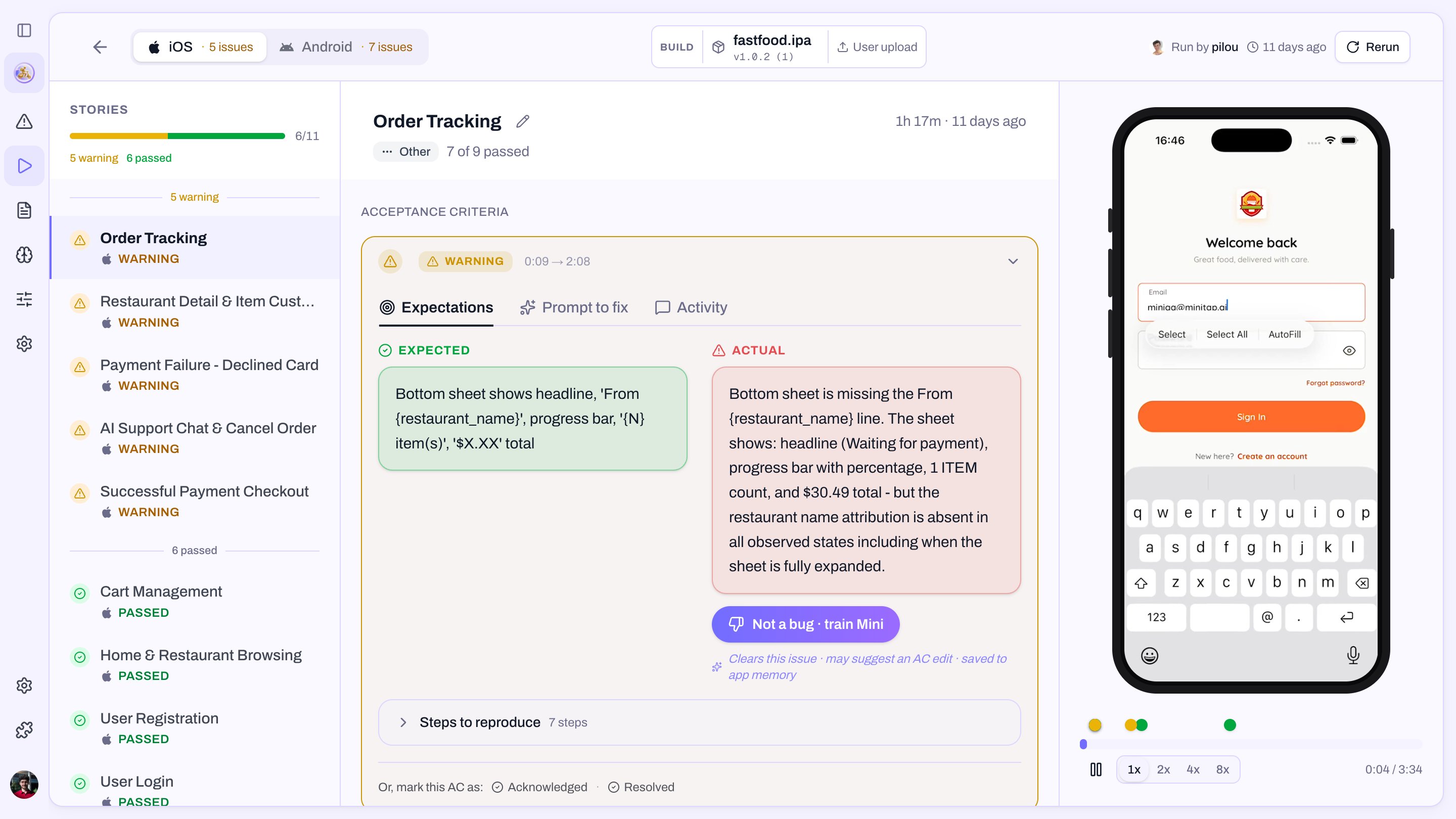
Verdict header
- Passed — every critical criterion held.
- Warning — every critical criterion held, at least one warning criterion didn’t.
- Failed — at least one critical criterion didn’t hold.
- Unprocessable — Mini ran the story but couldn’t grade it.
Criterion list
Each criterion appears with its status and the agent’s evidence:- ✅ Passed — what the agent saw that matched.
- ❌ Failed — what was expected vs what the agent saw, with a screenshot pinned to the moment of failure.
- ⚠️ Warning — the criterion is non-critical and didn’t hold.
Video + timeline
A continuous recording of the agent driving the app. The timeline underneath marks each criterion’s start/end, so you can scrub straight to the failure.Fix prompt
Every failed criterion exposes a Copy fix prompt button. The prompt is a ready-to-paste text block Mini wrote while running the story, containing three things:- The root cause — what went wrong and why.
- Steps to reproduce — the path the agent took into the failure.
- A concrete proposed fix — a starting point, not a final answer.
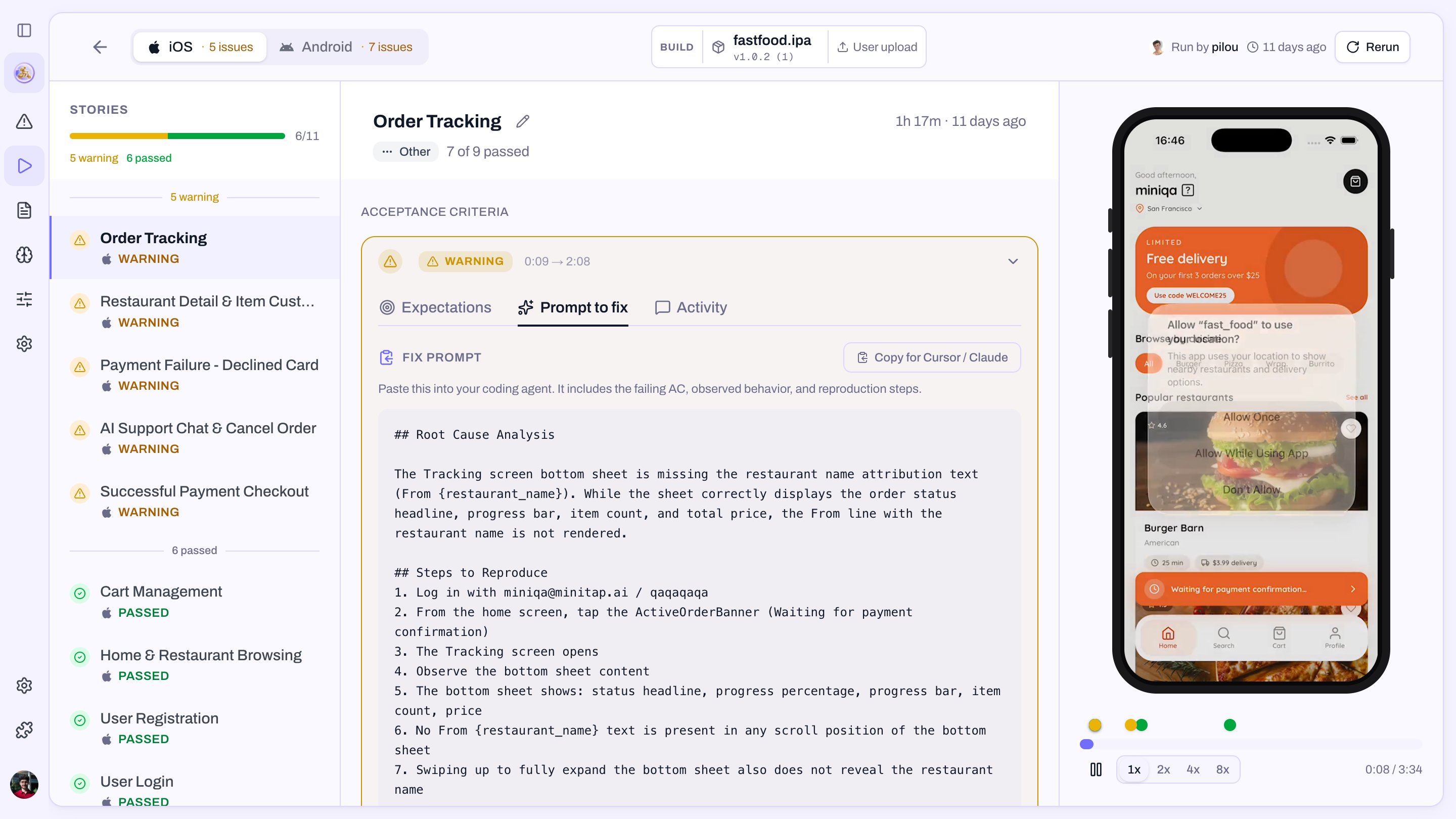
Build fix prompts
When a build itself fails to compile or install — distinct from a story failing on a healthy build — the build status panel exposes its own Copy fix prompt button. Same shape: root cause, repro, proposed fix. Use it when the run shows up as Unprocessable because the build never made it onto a device.When the verdict is Unprocessable
Unprocessable means Mini ran the story but couldn’t produce a real grade — every acceptance criterion ended up either un-evaluable or blocked by something upstream. The header explains which case it was. The common ones:- The build is broken — won’t install, crashes on launch, or the bundle is malformed. Open the build panel and use its fix prompt.
- Sign-in failed — Mini couldn’t get past auth, so nothing downstream is testable. Attach a working profile to the user story.
- The criteria don’t fit the app — usually a story copied from another app, or a criterion that asks for something the app doesn’t do. Edit the story.
- A hard blocker mid-story — something earlier in the flow made every remaining criterion unreachable. The first failed criterion is the one to read.