> ## Documentation Index
> Fetch the complete documentation index at: https://www.minitap.ai/docs/llms.txt
> Use this file to discover all available pages before exploring further.
# Platform Quickstart
> Run your first mobile automation in 5 minutes with Minitap Platform
**🚀 Recommended approach** for most users - Get started faster with centralized configuration and built-in observability.
The **Platform approach** uses [platform.mobile-use.ai](https://platform.mobile-use.ai) to manage your automation tasks and LLM configurations in the cloud.
## Why Use the Platform?
**No LLM config files needed** - Start in minutes, not hours
Track costs, execution time, and agent reasoning live
Update task prompts and LLM models without code changes
Centralized tasks and profiles for your organization
Access to **all models available on OpenRouter** - no individual API key management needed
Compare with [Local Development](/docs/mobile-use-sdk/quickstart) if you need full control over LLM configuration or offline capability.
## Prerequisites & Installation
**First time?** Complete the common [Installation](/docs/mobile-use-sdk/installation) steps (SDK installation, device setup, etc.) before continuing with platform-specific configuration below.
## Configure Platform Credentials
Create a `.env` file in your project root with your Minitap Platform credentials:
```bash .env theme={null}
# Minitap Platform API Key (get this from platform.mobile-use.ai)
MINITAP_API_KEY=your_api_key_here
# Minitap Platform Base URL (optional - this is the default)
MINITAP_BASE_URL=https://platform.mobile-use.ai/api/v1
```
Never commit your `.env` file to version control. Add it to your `.gitignore`.
**No LLM config file needed!** Unlike local development, the platform manages all LLM configurations centrally.
***
## Quick Start
Go to [platform.mobile-use.ai](https://platform.mobile-use.ai) and create an account
Navigate to [**API Keys**](https://platform.mobile-use.ai/api-keys) → **Create API Key** → Copy your key and add it to your `.env` file as shown above
Go to [**Tasks**](https://platform.mobile-use.ai/tasks) → **Create Task**
* **Name**: `check-notifications`
* **Agent Prompt**: `Open the notifications panel and list all notifications`
* Click **Create**
Create your first automation script:
```python theme={null}
import asyncio
from minitap.mobile_use.sdk import Agent
from minitap.mobile_use.sdk.types import PlatformTaskRequest
async def main():
agent = Agent()
agent.init()
result = await agent.run_task(
request=PlatformTaskRequest(task="check-notifications")
)
print(f"Result: {result}")
agent.clean()
asyncio.run(main())
```
Go to [**Task Runs**](https://platform.mobile-use.ai/tasks/runs) to see execution details, agent thoughts, and costs
***
## What's Next?
Define more complex automation workflows with structured outputs
Create custom LLM profiles for cost vs. performance tradeoffs
Explore agent thoughts, execution timeline, GIF traces, and cost breakdown
Centralized tasks and profiles for your organization
***
## Run Tasks from the Platform UI (Cloud Execution)
In addition to running tasks via the SDK, you can now execute automation tasks **directly from the platform UI** on cloud devices - no local setup required.
**Fully Cloud-Based**: Cloud Execution runs entirely on Minitap infrastructure. No Python SDK installation, no local device connection needed.
### Prerequisites
Before using Cloud Execution:
Have an active cloud mobile device (booted and in **Ready** state)
Create at least one LLM profile on the platform
Have an automation task template configured
### Cloud Execution Workflow
Go to [**Tasks**](https://platform.mobile-use.ai/tasks) on the platform
Click **Run** on any task card
In the dialog, select the **Cloud Execution** tab
Select the LLM profile to use for this execution
Choose an available cloud device from the dropdown
* **Ready** devices can run immediately
* **Stopped** devices will show a boot confirmation dialog
Click **Run Task** to start execution
You'll be redirected to the task run details page with real-time progress
### Device Status Indicators
| Status | Description |
| ------------ | ------------------------------------------------------ |
| **Ready** | Device is booted and available for immediate execution |
| **Starting** | Device is currently booting up |
| **Stopping** | Device is shutting down |
| **Stopped** | Device is powered off (will prompt to boot) |
Ready devices have a keep-alive mechanism to stay available. You only pay for active usage time.
### Local vs Cloud Execution Comparison
| Feature | Local (SDK) | Cloud Execution |
| ------------------------ | ------------------------------------------- | ---------------------------------------- |
| **Setup required** | Python + SDK install + device | None |
| **Device** | Physical device or emulator | Cloud managed |
| **Execution** | On your machine | Platform servers |
| **Best for** | Development, debugging, custom integrations | Production, no-code users, quick testing |
| **Real-time monitoring** | Via platform traces | Built-in with redirect to task run |
***
## Learn More
### Task Configuration Options
When creating tasks on the platform, you have several configuration options:
**Basic Fields:**
* **Task Name**: Unique identifier used in your SDK code
* **Description**: Helps team members understand the task purpose
* **Agent Prompt**: Detailed instructions for the agent (use the "Generate" button for AI assistance)
* **Output Description**: Optional - describe the expected JSON structure for structured outputs
* **Locked App Package**: Optional - restrict execution to a specific app (e.g., `com.whatsapp`)
**Settings:**
* **Enable Tracing**: Shows full LLM prompts/responses on platform (disable for privacy)
* **Max Steps**: Limit execution steps to prevent runaway costs (default: 400)
When a **Locked App Package** is set, the task card displays a 🔒 indicator with the package name. Use the `` placeholder in your prompt to reference it dynamically.
### LLM Profiles (Optional)
By default, tasks use a Minitap-managed profile optimized for mobile-use. Create custom profiles for:
* Cost optimization (use faster/cheaper models)
* Performance optimization (use more powerful models)
* Different task types (simple vs. complex)
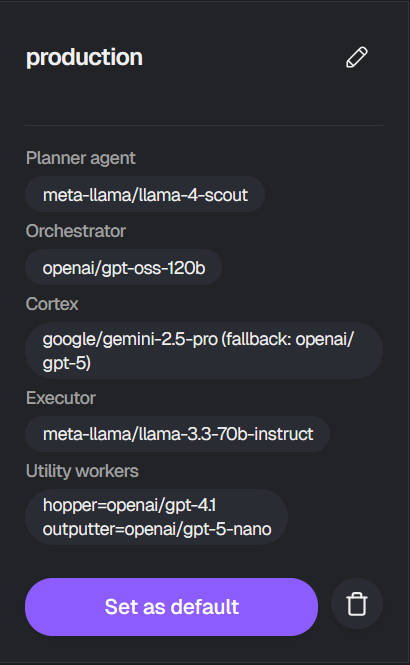 All models use the `minitap` provider with format: `provider/model-name` (e.g., `openai/gpt-5`, `google/gemini-2.5-pro`)
The platform supports **all models available on [OpenRouter](https://openrouter.ai/models)**, giving you access to the latest models from OpenAI, Anthropic, Google, Meta, and more - without managing individual API keys.
**Agent Components:**
The mobile-use agent uses a multi-agent architecture where different LLMs handle specific tasks:
**Role:** The "eyes" and decision-maker of the system. Analyzes screenshots, understands UI elements, and decides what action to take next.
**Requirements:** Must support vision/image inputs
**Recommendation:** Use the best vision model available:
* `google/gemini-2.5-pro` - Excellent vision + reasoning
* `openai/gpt-5` - Strong vision capabilities
* `anthropic/claude-3.5-sonnet` - Good vision understanding
**Also configure a fallback** for reliability when primary model fails.
**Impact:** 🔴 Critical - Poor cortex model = task failures
**Role:** Decomposes high-level goals into executable subgoals. Runs once at the start and potentially during replanning.
**Requirements:** Strong reasoning and planning capabilities
**Recommendation:**
* `meta-llama/llama-4-scout` - Fast and capable
* `openai/gpt-5-nano` - Quick planning
* `anthropic/claude-3-haiku` - Cost-effective
**Impact:** 🟡 Medium - Affects execution strategy
**Role:** Coordinates the execution flow, decides when to use hopper vs cortex, manages state transitions.
**Requirements:** Fast, good at decision-making
**Recommendation:** Fast models:
* `openai/gpt-oss-120b` - Efficient coordination
* `openai/gpt-5-nano` - Quick decisions
**Impact:** 🟡 Medium - Affects execution efficiency
**Role:** Translates high-level decisions into specific device actions (tap, swipe, type).
**Requirements:** Instruction-following, fast response
**Recommendation:**
* `meta-llama/llama-3.3-70b-instruct` - Excellent instruction following
* `openai/gpt-5-nano` - Fast execution
**Impact:** 🟢 Low - Straightforward task
**Role:** Digs through large batches of data (historical context, screen data) to extract the most relevant information for reaching the goal.
**Requirements:** Large context window (256k+ tokens recommended) to handle extensive data batches
**Recommendation:**
* `openai/gpt-4.1` - 256k context
* `google/gemini-2.0-flash` - Large context
**Impact:** 🟡 Medium - Improves information extraction from large datasets
**Role:** Extracts structured output from task results according to output description.
**Requirements:** JSON formatting, structured output capability
**Recommendation:**
* `openai/gpt-5-nano` - Good at JSON
* `anthropic/claude-3-haiku` - Structured outputs
**Impact:** 🟢 Low - Only used when output\_description specified
### Structured Output Example
For type-safe results, use Pydantic models:
```python theme={null}
from pydantic import BaseModel, Field
class NotificationSummary(BaseModel):
total: int = Field(..., description="Total notifications")
unread: int = Field(..., description="Unread count")
result = await agent.run_task(
request=PlatformTaskRequest[NotificationSummary](
task="check-notifications",
profile="default"
)
)
# result is typed as NotificationSummary | None
if result:
print(f"Total: {result.total}, Unread: {result.unread}")
```
### Viewing Task Runs
Visit [**Task Runs**](https://platform.mobile-use.ai/tasks/runs) to see execution details:
All models use the `minitap` provider with format: `provider/model-name` (e.g., `openai/gpt-5`, `google/gemini-2.5-pro`)
The platform supports **all models available on [OpenRouter](https://openrouter.ai/models)**, giving you access to the latest models from OpenAI, Anthropic, Google, Meta, and more - without managing individual API keys.
**Agent Components:**
The mobile-use agent uses a multi-agent architecture where different LLMs handle specific tasks:
**Role:** The "eyes" and decision-maker of the system. Analyzes screenshots, understands UI elements, and decides what action to take next.
**Requirements:** Must support vision/image inputs
**Recommendation:** Use the best vision model available:
* `google/gemini-2.5-pro` - Excellent vision + reasoning
* `openai/gpt-5` - Strong vision capabilities
* `anthropic/claude-3.5-sonnet` - Good vision understanding
**Also configure a fallback** for reliability when primary model fails.
**Impact:** 🔴 Critical - Poor cortex model = task failures
**Role:** Decomposes high-level goals into executable subgoals. Runs once at the start and potentially during replanning.
**Requirements:** Strong reasoning and planning capabilities
**Recommendation:**
* `meta-llama/llama-4-scout` - Fast and capable
* `openai/gpt-5-nano` - Quick planning
* `anthropic/claude-3-haiku` - Cost-effective
**Impact:** 🟡 Medium - Affects execution strategy
**Role:** Coordinates the execution flow, decides when to use hopper vs cortex, manages state transitions.
**Requirements:** Fast, good at decision-making
**Recommendation:** Fast models:
* `openai/gpt-oss-120b` - Efficient coordination
* `openai/gpt-5-nano` - Quick decisions
**Impact:** 🟡 Medium - Affects execution efficiency
**Role:** Translates high-level decisions into specific device actions (tap, swipe, type).
**Requirements:** Instruction-following, fast response
**Recommendation:**
* `meta-llama/llama-3.3-70b-instruct` - Excellent instruction following
* `openai/gpt-5-nano` - Fast execution
**Impact:** 🟢 Low - Straightforward task
**Role:** Digs through large batches of data (historical context, screen data) to extract the most relevant information for reaching the goal.
**Requirements:** Large context window (256k+ tokens recommended) to handle extensive data batches
**Recommendation:**
* `openai/gpt-4.1` - 256k context
* `google/gemini-2.0-flash` - Large context
**Impact:** 🟡 Medium - Improves information extraction from large datasets
**Role:** Extracts structured output from task results according to output description.
**Requirements:** JSON formatting, structured output capability
**Recommendation:**
* `openai/gpt-5-nano` - Good at JSON
* `anthropic/claude-3-haiku` - Structured outputs
**Impact:** 🟢 Low - Only used when output\_description specified
### Structured Output Example
For type-safe results, use Pydantic models:
```python theme={null}
from pydantic import BaseModel, Field
class NotificationSummary(BaseModel):
total: int = Field(..., description="Total notifications")
unread: int = Field(..., description="Unread count")
result = await agent.run_task(
request=PlatformTaskRequest[NotificationSummary](
task="check-notifications",
profile="default"
)
)
# result is typed as NotificationSummary | None
if result:
print(f"Total: {result.total}, Unread: {result.unread}")
```
### Viewing Task Runs
Visit [**Task Runs**](https://platform.mobile-use.ai/tasks/runs) to see execution details:
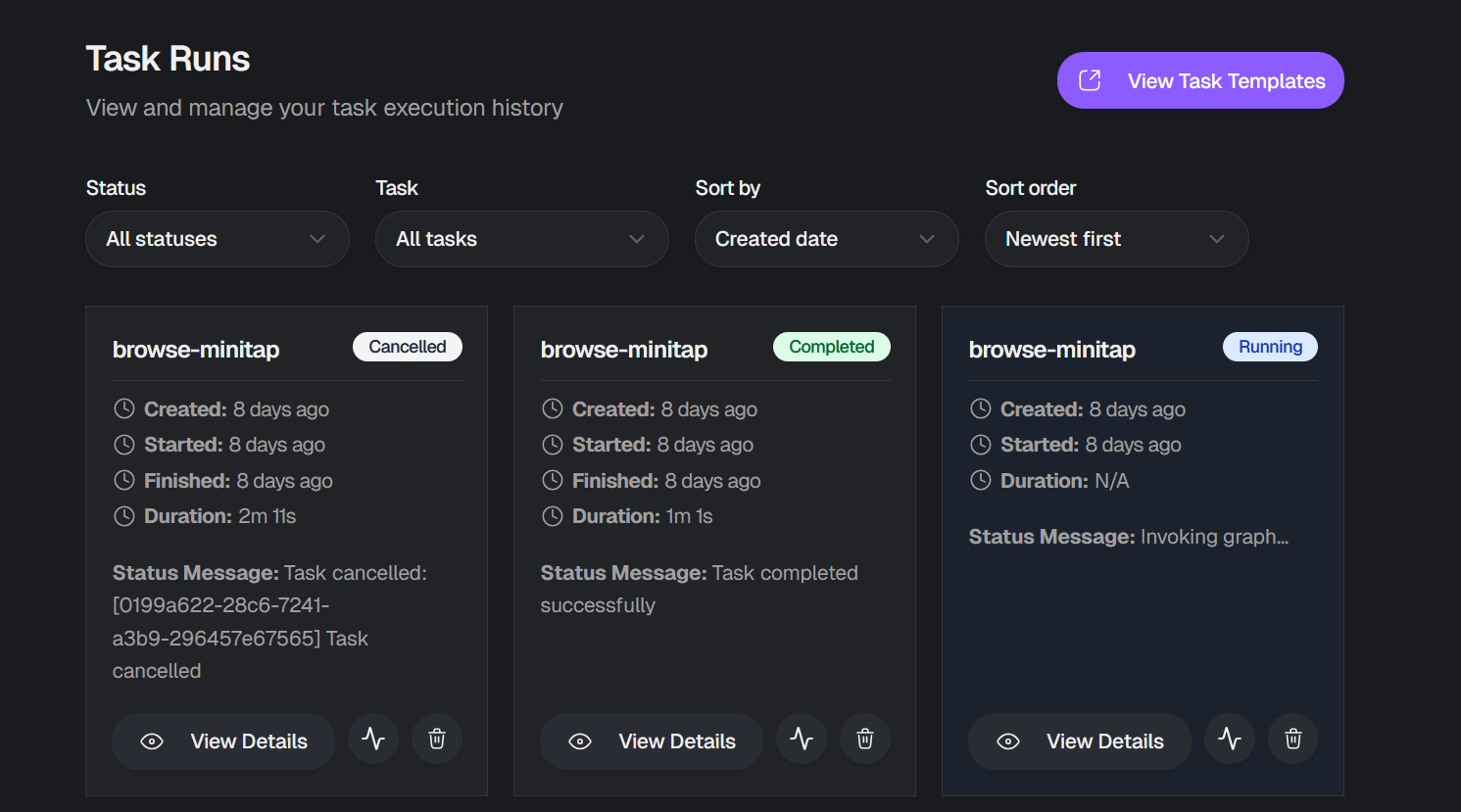 Click any run to view:
* Execution status and duration
* Agent thoughts and reasoning
* Subgoal progression
* Cost breakdown
Click any run to view:
* Execution status and duration
* Agent thoughts and reasoning
* Subgoal progression
* Cost breakdown
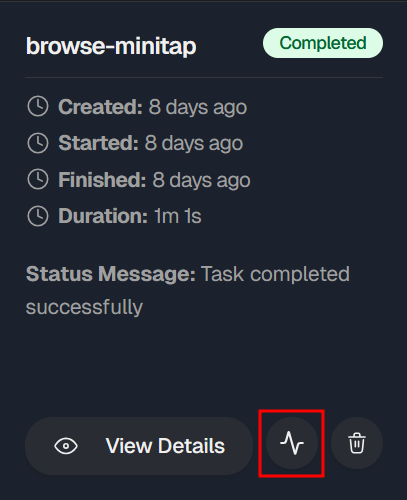 **What Gets Tracked:**
Status transitions throughout execution:
* `pending`: Task created, waiting to start
* `running`: Task actively executing
* `completed`: Task finished successfully with output
* `failed`: Task encountered an error
* `cancelled`: Task was manually cancelled
The planner agent creates high-level subgoals. Each subgoal is tracked:
* Name/description
* State: `pending` → `started` → `completed`/`failed`
* Start and end timestamps
* Plan updates on replanning
Reasoning from each agent component:
* **Planner**: Goal decomposition and planning
* **Cortex**: Visual understanding and decision making
* **Orchestrator**: Execution coordination
* **Executor**: Action translation and execution
* **Hopper**: Data extraction from large batches
* **Outputter**: Structured output extraction
Each thought includes timestamp and agent identifier.
Detailed LLM API call metrics (when tracing enabled):
* Model used
* Token counts (input/output)
* Cost in dollars
* Latency
* Request/response content
### PlatformTaskRequest Reference
**Parameters:**
* `task` (required): Task name from platform
* `profile` (optional): LLM profile name (defaults to Minitap-managed profile)
* `api_key` (optional): Overrides `MINITAP_API_KEY` environment variable
* `record_trace` (optional): Save local trace files
* `trace_path` (optional): Local directory for traces
***
## Platform vs Local Comparison
✅ **No LLM config files** - Platform manages all model configurations
✅ **All OpenRouter models** - Access to all models on OpenRouter without managing API keys
✅ **Instant updates** - Change task prompts and models without redeploying code
✅ **Built-in observability** - Real-time cost tracking, execution monitoring, and agent reasoning
✅ **Team collaboration** - Share tasks and LLM profiles across your organization
Use the [Local approach](/docs/mobile-use-sdk/quickstart) if you need:
* Full control over LLM provider selection and API endpoints
* Custom infrastructure or air-gapped environments
* Offline capability without internet dependency
* Development and testing with local model configurations
***
## Resources
Learn the local approach for comparison
PlatformTaskRequest type documentation
Go to Minitap Platform
More platform examples
**What Gets Tracked:**
Status transitions throughout execution:
* `pending`: Task created, waiting to start
* `running`: Task actively executing
* `completed`: Task finished successfully with output
* `failed`: Task encountered an error
* `cancelled`: Task was manually cancelled
The planner agent creates high-level subgoals. Each subgoal is tracked:
* Name/description
* State: `pending` → `started` → `completed`/`failed`
* Start and end timestamps
* Plan updates on replanning
Reasoning from each agent component:
* **Planner**: Goal decomposition and planning
* **Cortex**: Visual understanding and decision making
* **Orchestrator**: Execution coordination
* **Executor**: Action translation and execution
* **Hopper**: Data extraction from large batches
* **Outputter**: Structured output extraction
Each thought includes timestamp and agent identifier.
Detailed LLM API call metrics (when tracing enabled):
* Model used
* Token counts (input/output)
* Cost in dollars
* Latency
* Request/response content
### PlatformTaskRequest Reference
**Parameters:**
* `task` (required): Task name from platform
* `profile` (optional): LLM profile name (defaults to Minitap-managed profile)
* `api_key` (optional): Overrides `MINITAP_API_KEY` environment variable
* `record_trace` (optional): Save local trace files
* `trace_path` (optional): Local directory for traces
***
## Platform vs Local Comparison
✅ **No LLM config files** - Platform manages all model configurations
✅ **All OpenRouter models** - Access to all models on OpenRouter without managing API keys
✅ **Instant updates** - Change task prompts and models without redeploying code
✅ **Built-in observability** - Real-time cost tracking, execution monitoring, and agent reasoning
✅ **Team collaboration** - Share tasks and LLM profiles across your organization
Use the [Local approach](/docs/mobile-use-sdk/quickstart) if you need:
* Full control over LLM provider selection and API endpoints
* Custom infrastructure or air-gapped environments
* Offline capability without internet dependency
* Development and testing with local model configurations
***
## Resources
Learn the local approach for comparison
PlatformTaskRequest type documentation
Go to Minitap Platform
More platform examples