> ## Documentation Index
> Fetch the complete documentation index at: https://www.minitap.ai/docs/llms.txt
> Use this file to discover all available pages before exploring further.
# Observability & Tracing
> Track task execution with local traces and platform GIF uploads
Minitap provides powerful observability features to help you debug and understand your task executions. Whether running locally or on the platform, you can capture detailed traces of agent behavior.
## Overview
Screenshots and action logs saved to your local filesystem
Animated GIF automatically uploaded to platform for easy viewing
## How It Works
```mermaid theme={null}
flowchart TD
A[Task Execution] --> B{Tracing Enabled?}
B -->|Yes| C[Capture Screenshots]
B -->|No| D[No Trace Data]
C --> E[Compile GIF]
E --> F{Platform Task?}
F -->|Yes| G[Upload to Cloud]
F -->|No| J[Task Complete]
G --> I[Print Platform URL]
I --> J
D --> J
```
**How it works:**
* When `record_trace=True` (default), a GIF is created locally from screenshots
* For platform tasks, the GIF is automatically uploaded to cloud storage
* Local GIF is always saved, even if upload fails
* Access control via API key - only you can view your traces
***
## Local Trace Recording
Enable trace recording to save screenshots and action logs locally.
### Basic Usage
```python theme={null}
task = (
agent.new_task("Check my notifications")
.with_trace_recording(enabled=True)
.build()
)
result = await agent.run_task(request=task)
```
### Custom Path
```python theme={null}
from pathlib import Path
task = (
agent.new_task("Open settings")
.with_trace_recording(
enabled=True,
path=Path("./my-traces")
)
.build()
)
```
### What Gets Saved
Local traces include:
* **trace.gif**: An animated GIF showing the entire execution. It’s a compilation of screenshots taken after each agent step.
* **steps.json**: A compilation of the agent’s thoughts and reasoning during the run, along with timestamps.
***
## Platform GIF Upload
When running platform tasks, traces are automatically uploaded to Minitap cloud storage for easy viewing in the web UI.
### Automatic Upload (Default)
Platform tasks upload GIF traces by default. You don't need to specify `record_trace=True`:
```python theme={null}
from minitap.mobile_use.sdk.types import PlatformTaskRequest
# record_trace=True by default - GIF automatically created locally and uploaded
result = await agent.run_task(
request=PlatformTaskRequest(task="my-task-name")
)
# Console output:
# 🌐 View on platform: https://platform.mobile-use.ai/task-runs/abc123
```
### Disable Upload (Optional)
To disable cloud upload while keeping local GIF creation, set `record_trace=False`:
```python theme={null}
result = await agent.run_task(
request=PlatformTaskRequest(
task="my-task-name",
record_trace=False # Skip cloud upload, local GIF still created
)
)
```
### Manual Tasks
Manual tasks (using `ManualTaskConfig`) also support GIF upload:
```python theme={null}
from minitap.mobile_use.sdk.types import (
PlatformTaskRequest,
ManualTaskConfig
)
result = await agent.run_task(
request=PlatformTaskRequest(
task=ManualTaskConfig(
goal="Check Android version",
task_name="version_check"
)
# record_trace=True by default (omitted)
)
)
```
***
## Viewing Platform Traces
### SDK Runs List
Navigate to [SDK Runs](https://platform.mobile-use.ai/sdk-runs) to see all your task executions with GIF previews:
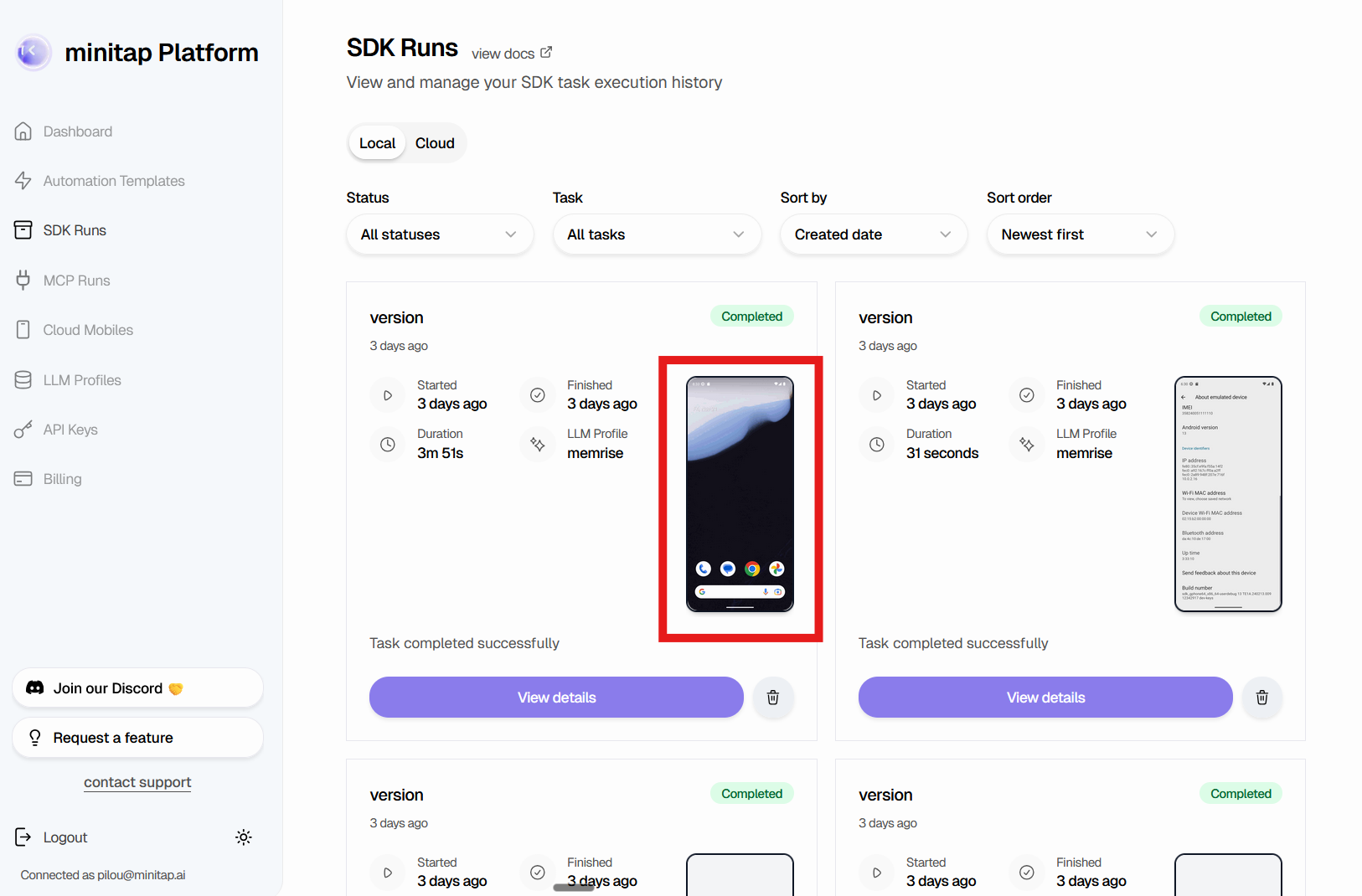 Each run card shows:
* Task status
* Execution duration
* LLM profile used
* GIF thumbnail preview
### Task Run Details
Click "View details" to see the full execution trace:
Each run card shows:
* Task status
* Execution duration
* LLM profile used
* GIF thumbnail preview
### Task Run Details
Click "View details" to see the full execution trace:
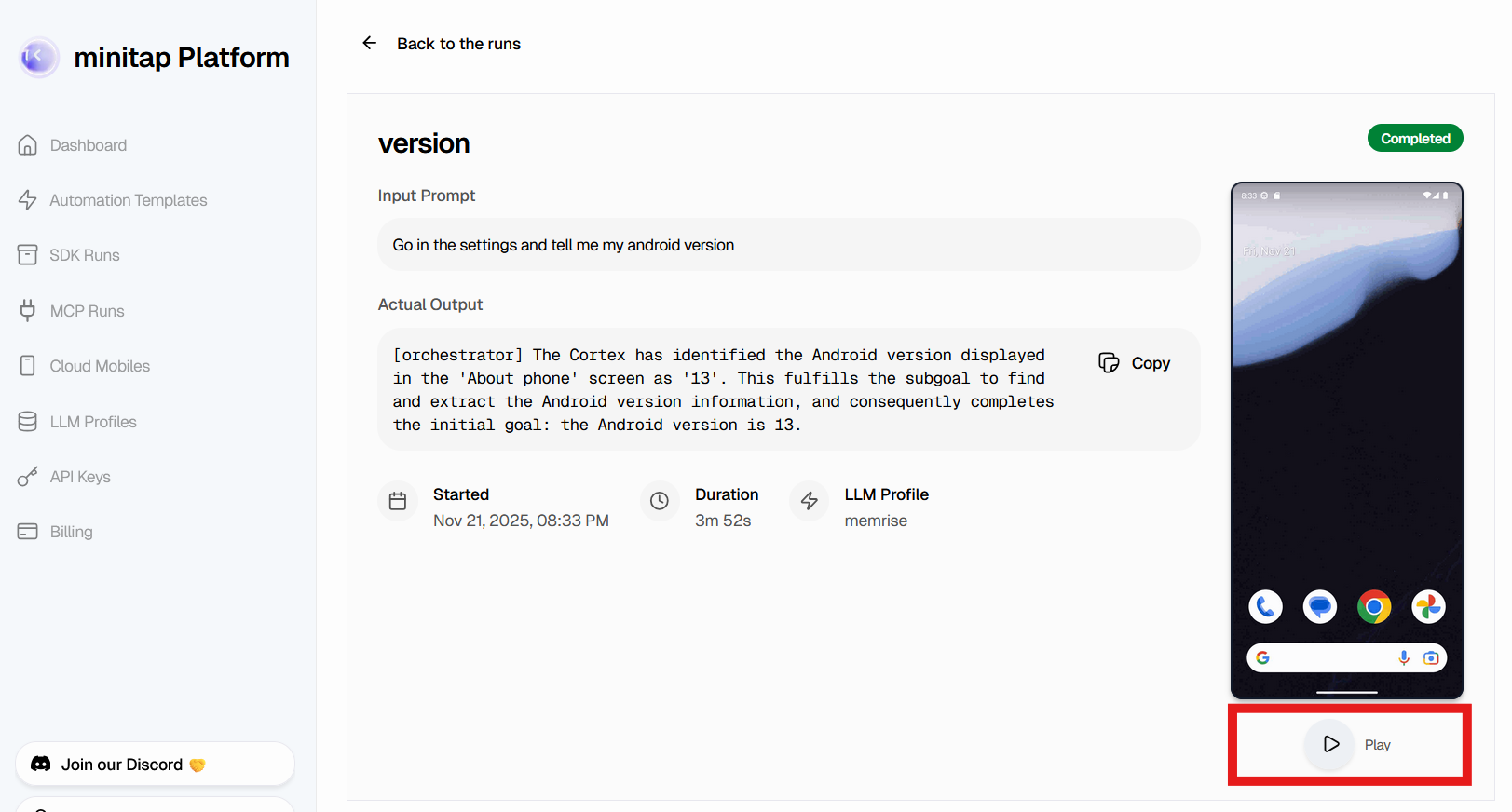 The details page includes:
* Input prompt and output
* Playable GIF of the execution
* Start time and duration
* LLM profile configuration
* Agent thoughts and reasoning
Use the GIF player to step through the execution and identify where issues
occurred.
***
## Configuration Reference
### PlatformTaskRequest Parameters
Controls GIF creation and upload. When `True` (default), a GIF is created
locally and uploaded to the platform. Set to `False` to disable cloud upload
(local GIF still created).
Local directory to save trace files. Defaults to system temporary directory.
### Example
```python theme={null}
import asyncio
from pathlib import Path
from minitap.mobile_use.sdk import Agent
from minitap.mobile_use.sdk.types import PlatformTaskRequest
async def main():
agent = Agent()
agent.init()
result = await agent.run_task(
request=PlatformTaskRequest(
task="check-notifications",
profile="default",
# record_trace=True by default if omitted.
# trace_path=Path("./local-traces") for custom local path, stored in a temporary folder if omitted.
)
)
print(f"Result: {result}")
agent.clean()
asyncio.run(main())
```
### Console Output
```bash theme={null}
[INFO] 📂✅ Traces located in: /tmp/mobile-use-traces/notification_check_success_20250121_083345
[INFO] 🌐 View on platform: https://platform.mobile-use.ai/task-runs/cm73x8e9q0001l508xyz123
```
***
## Troubleshooting
### Upload Failed
If the GIF upload fails, check:
Maximum GIF size is **300MB**. Very long-running tasks (+1h) may exceed this limit.
Reduce `max_steps` in your task configuration or split into multiple shorter tasks.
### Verify Upload Success
Check the console output for the platform URL:
```bash theme={null}
🌐 View on platform: https://platform.mobile-use.ai/task-runs/{id}
```
If you see this message, the upload succeeded. Click the link to view your trace.
### Missing GIF on Platform
If the GIF doesn't appear on the platform:
1. **Check task status** - GIF upload happens after task completes
2. **Verify record\_trace=True** - Default is true, but confirm it wasn't disabled
3. **Check console for errors** - Look for upload failure messages
4. **Refresh the page** - Browser cache may show old data
***
## Best Practices
Tracing is enabled by default for easy debugging. Disable it when processing sensitive data or running many tasks in production:
```python theme={null}
# Disable for sensitive data
result = await agent.run_task(
request=PlatformTaskRequest(
task="sensitive-task",
record_trace=False # No GIF recording
)
)
```
***
## Next Steps
Learn more about platform task execution
Explore all task configuration options
Common issues and solutions
See complete working examples
The details page includes:
* Input prompt and output
* Playable GIF of the execution
* Start time and duration
* LLM profile configuration
* Agent thoughts and reasoning
Use the GIF player to step through the execution and identify where issues
occurred.
***
## Configuration Reference
### PlatformTaskRequest Parameters
Controls GIF creation and upload. When `True` (default), a GIF is created
locally and uploaded to the platform. Set to `False` to disable cloud upload
(local GIF still created).
Local directory to save trace files. Defaults to system temporary directory.
### Example
```python theme={null}
import asyncio
from pathlib import Path
from minitap.mobile_use.sdk import Agent
from minitap.mobile_use.sdk.types import PlatformTaskRequest
async def main():
agent = Agent()
agent.init()
result = await agent.run_task(
request=PlatformTaskRequest(
task="check-notifications",
profile="default",
# record_trace=True by default if omitted.
# trace_path=Path("./local-traces") for custom local path, stored in a temporary folder if omitted.
)
)
print(f"Result: {result}")
agent.clean()
asyncio.run(main())
```
### Console Output
```bash theme={null}
[INFO] 📂✅ Traces located in: /tmp/mobile-use-traces/notification_check_success_20250121_083345
[INFO] 🌐 View on platform: https://platform.mobile-use.ai/task-runs/cm73x8e9q0001l508xyz123
```
***
## Troubleshooting
### Upload Failed
If the GIF upload fails, check:
Maximum GIF size is **300MB**. Very long-running tasks (+1h) may exceed this limit.
Reduce `max_steps` in your task configuration or split into multiple shorter tasks.
### Verify Upload Success
Check the console output for the platform URL:
```bash theme={null}
🌐 View on platform: https://platform.mobile-use.ai/task-runs/{id}
```
If you see this message, the upload succeeded. Click the link to view your trace.
### Missing GIF on Platform
If the GIF doesn't appear on the platform:
1. **Check task status** - GIF upload happens after task completes
2. **Verify record\_trace=True** - Default is true, but confirm it wasn't disabled
3. **Check console for errors** - Look for upload failure messages
4. **Refresh the page** - Browser cache may show old data
***
## Best Practices
Tracing is enabled by default for easy debugging. Disable it when processing sensitive data or running many tasks in production:
```python theme={null}
# Disable for sensitive data
result = await agent.run_task(
request=PlatformTaskRequest(
task="sensitive-task",
record_trace=False # No GIF recording
)
)
```
***
## Next Steps
Learn more about platform task execution
Explore all task configuration options
Common issues and solutions
See complete working examples