> ## Documentation Index
> Fetch the complete documentation index at: https://www.minitap.ai/docs/llms.txt
> Use this file to discover all available pages before exploring further.
# Triaging your issues
> How issues surface, what's in one, and the three actions you take on them — same flow in the dashboard or in Slack.
When a criterion fails, miniTest opens an **issue** in the **Issues**
tab. One issue per failing criterion, deduplicated across runs so a
single broken user story doesn't fan out into N copies.
Triage works the same wherever you are — dashboard or Slack thread.
State is shared across surfaces, so an action in one place updates
the other instantly.
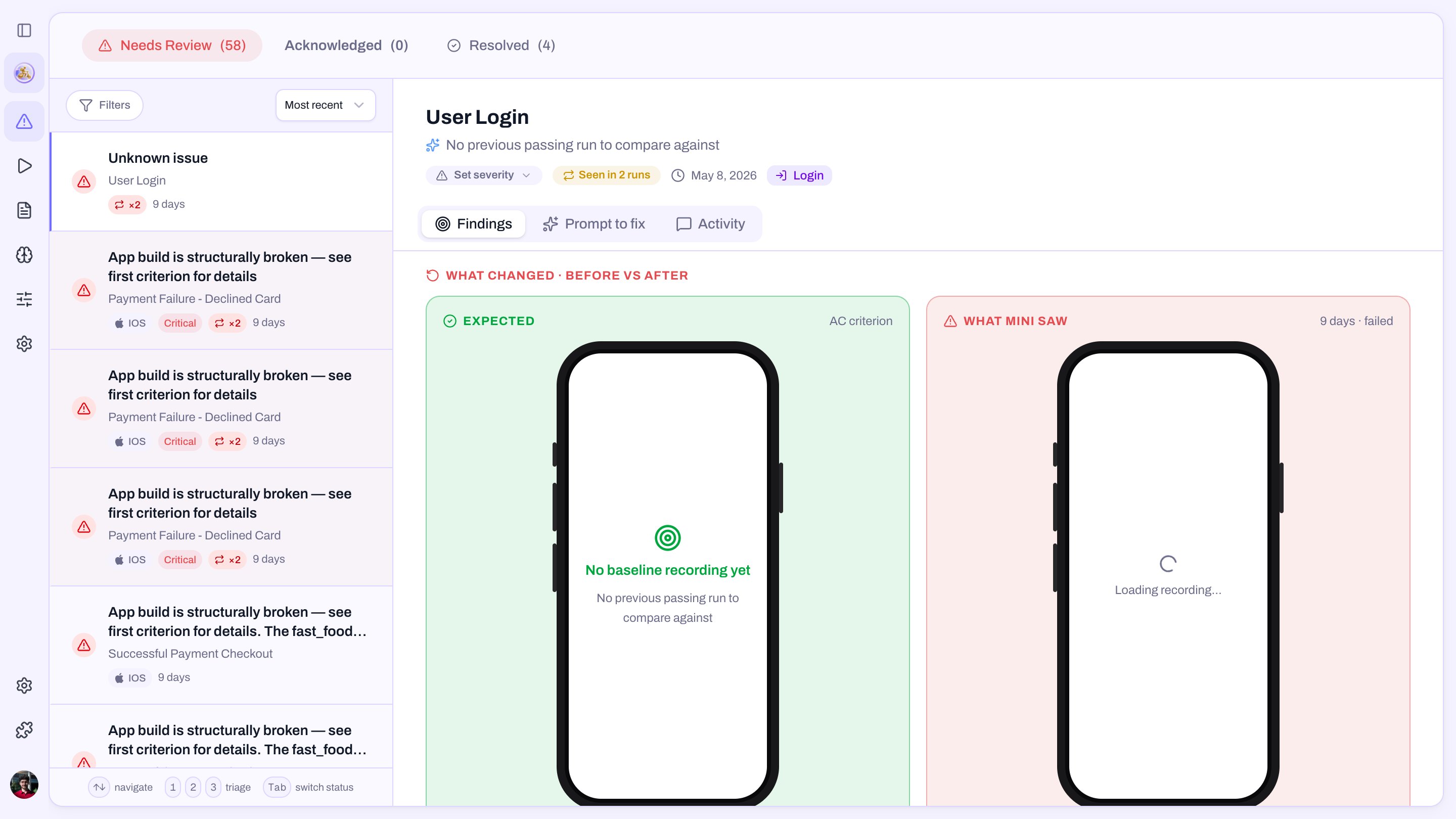 ## Inside an issue
The exact wording that didn't hold.
`Critical`, `Warning`, or `Pass`. Inferred by Mini from what it
observed, and overridable per issue when the inference doesn't
match your business reality.
Where the issue is in the triage workflow below.
The most recent run where the issue reproduced.
A short clip of the failure plus a deep link to the
[run report](/docs/minitest/runs/run-report) at the right moment.
The same paste-ready block from the run report, one click away.
## The triage actions
Every issue exposes three buttons. Pick one — that's the whole loop.
You've seen it; nothing else to say yet. The issue stays open in
the queue.
Intentional change, flaky criterion, false positive. You're asked
for a short note explaining why it isn't a bug. The issue stops
counting against the app.
The underlying problem is fixed. You're asked for feedback on
what the fix was, and the next clean run closes it for real.
Every triaged issue keeps a **Back to review** button that returns
it to the open queue if you change your mind.
Every note you write — on **Not a bug** or on **Resolved** — feeds
[Mini's memory](/docs/minitest/suite/mini-maintains-your-suite). Next time it
sees something similar, it has your reasoning to draw on, so the
same false positive doesn't show up twice and the same fix patterns
inform future suggestions.
## Overriding the criticality
Mini infers criticality from what it observed, but you know your
product. If the inference is wrong, override it on the issue itself:
* A small-looking criterion that protects revenue
(`Order total matches sum of items`) → bump to **Critical**.
* A serious-looking criterion that's actually cosmetic
(`A small "Beta" badge is shown`) → drop to **Warning**.
The override is sticky on that issue and reflected everywhere the
issue appears.
## Where issues live
The **Issues** tab on every app. Left rail lists open issues by
criticality and age, right pane shows the criterion, evidence,
and the triage actions.
The same actions sit in the run heartbeat thread. Triage where
the conversation already is — the dashboard updates the moment
you click.
## Inside an issue
The exact wording that didn't hold.
`Critical`, `Warning`, or `Pass`. Inferred by Mini from what it
observed, and overridable per issue when the inference doesn't
match your business reality.
Where the issue is in the triage workflow below.
The most recent run where the issue reproduced.
A short clip of the failure plus a deep link to the
[run report](/docs/minitest/runs/run-report) at the right moment.
The same paste-ready block from the run report, one click away.
## The triage actions
Every issue exposes three buttons. Pick one — that's the whole loop.
You've seen it; nothing else to say yet. The issue stays open in
the queue.
Intentional change, flaky criterion, false positive. You're asked
for a short note explaining why it isn't a bug. The issue stops
counting against the app.
The underlying problem is fixed. You're asked for feedback on
what the fix was, and the next clean run closes it for real.
Every triaged issue keeps a **Back to review** button that returns
it to the open queue if you change your mind.
Every note you write — on **Not a bug** or on **Resolved** — feeds
[Mini's memory](/docs/minitest/suite/mini-maintains-your-suite). Next time it
sees something similar, it has your reasoning to draw on, so the
same false positive doesn't show up twice and the same fix patterns
inform future suggestions.
## Overriding the criticality
Mini infers criticality from what it observed, but you know your
product. If the inference is wrong, override it on the issue itself:
* A small-looking criterion that protects revenue
(`Order total matches sum of items`) → bump to **Critical**.
* A serious-looking criterion that's actually cosmetic
(`A small "Beta" badge is shown`) → drop to **Warning**.
The override is sticky on that issue and reflected everywhere the
issue appears.
## Where issues live
The **Issues** tab on every app. Left rail lists open issues by
criticality and age, right pane shows the criterion, evidence,
and the triage actions.
The same actions sit in the run heartbeat thread. Triage where
the conversation already is — the dashboard updates the moment
you click.